
Product Image Merging: Show More Product Information in One Image
For sellers on Amazon and other e-commerce platforms, product images are one of the key factors that influence conversion rates.
When a product has multiple models, sizes, colors, or growth stages, sellers usually upload multiple images to present them.
However, on Amazon product detail pages, users can often view only one image at a time. To compare differences between products, they need to switch images repeatedly, which increases browsing cost and may reduce their overall understanding of the product line.
By combining multiple related products into one image, buyers can compare options within a single view and find the one that fits them faster.
Display multiple product variants in one image:
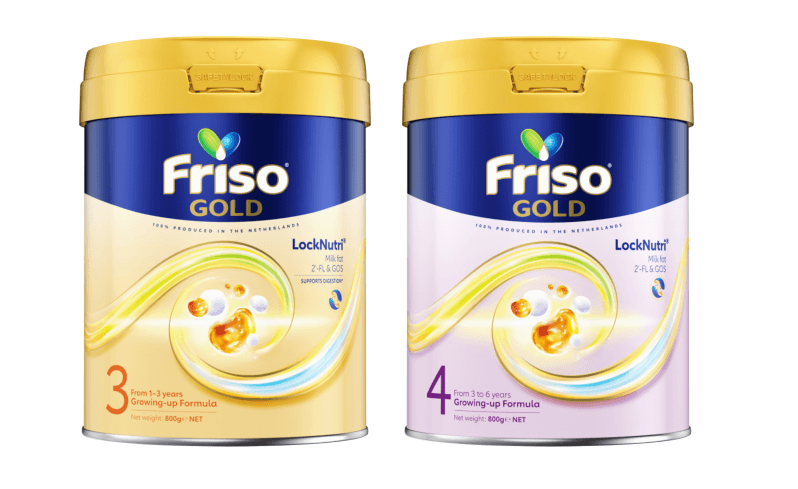
The image above shows a comparison of Friso Stage 3 and Stage 4 milk powder.
With a traditional display approach, shoppers need to open two separate product images to compare them.
With image merging, both products appear in the same frame, allowing shoppers to quickly observe differences in package design, product positioning, and growth stage.
This approach is especially suitable for showing multiple versions within the same product series.
Why Amazon Sellers Use Image Merging
Make Product Differences More Intuitive
For product series, buyers usually care most about these questions:
- What are the differences between these models?
- Which size/spec is right for me?
- Which version should I choose?
If each product is shown in a different image, users have to keep switching back and forth.
A side-by-side comparison image can directly show relationships between products and make information delivery more efficient.
Show a Complete Product Line
Many brands launch multiple related products, for example:
- Milk powder for different age groups
- Coffee in different flavors
- Different package sizes
- Different colors/styles
- Different functional models
Putting these products in one image helps buyers quickly understand the brand's full product line.
Improve Mobile Browsing Experience
More and more shoppers browse Amazon on their phones.
Frequently switching images on a small screen is inconvenient.
In contrast, a well-designed merged image can present more content at once and help users get key information faster.
Increase Information Density on Product Pages
Amazon limits the number of product images.
Although multiple images can be uploaded, each image slot is valuable.
By merging product images properly, sellers can show more content in a single image, such as:
- Product comparisons
- Product bundles
- Product dimensions
- Product accessories
- Product series
This improves overall presentation efficiency.
Common Use Cases
Comparison of Milk Powder Growth Stages
Suitable for:
- Stage 1, Stage 2, Stage 3, Stage 4 milk powder
- Children's nutrition products
- Infant and toddler complementary foods
Shoppers can quickly understand differences between products at different stages.
Display Products in Different Flavors
For example: coffee, protein powder, beverages, and similar products.
Show 4 coffee flavors in one image:
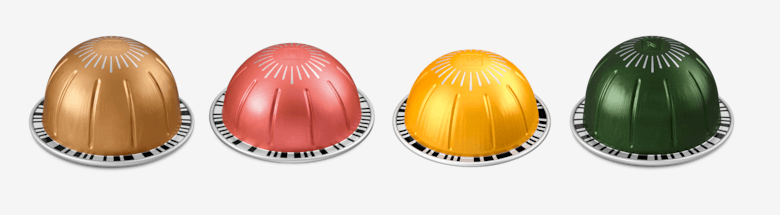
Showing multiple coffee flavors in one image helps shoppers quickly choose the taste they prefer.
Display Different Package Sizes
For example:
- 250g
- 500g
- 1000g
- 2000g
Users can understand size differences without switching images.
Product Bundle Display
Suitable for:
- Gift box sets
- Combo packages
- Accessory collections
It clearly shows what items customers will receive after purchase.
Create Amazon Product Comparison Images with Merge Pictures
Creating product comparison images is very simple:
- Upload the product images you want to show.
- Choose horizontal merging mode based on your display needs.
- Keep spacing and background color consistent for a more professional look.
- Download the generated high-resolution image.
- Upload the generated image to your Amazon product page.
Best Practices
To achieve better presentation results, it is recommended to follow these principles:
Keep a Consistent Background
Use product images with the same or similar background whenever possible.
A unified visual style makes the page look more professional.
Control the Number of Products
Do not place too many products in a single image.
General recommendation:
- 2 to 4 products is ideal
- No more than 6 products
This avoids an overcrowded layout.
Keep Text Readable
If the image contains product labels or spec notes, make sure they remain clearly readable on mobile devices.
Highlight Core Differences
Focus on showing:
- Model
- Specification
- Color
- Flavor
- Usage scenario
This helps shoppers complete comparisons quickly.
Summary
For products with multiple models, sizes, or versions, image merging is a simple and efficient presentation method.
By placing related products side by side in one image, sellers can help shoppers understand differences faster, improve information delivery on product pages, and create a better browsing experience.
If you want to create product comparison images quickly, you can use Merge Pictures to merge images online without installing software and without uploading images to a server.